GET STARTED
Your workspace, within reach.
You need a development computer and a phone or tablet. Set up the computer first, then install the app and pair.
01 — HOST
Your development computer
Choose a platform for the right steps
Windows Windows 10 1809+
Choose your processor
Run the installer, then open PadRemote Host from the Start menu.
macOS macOS 13+
Choose your processor
Install the .pkg, then open PadRemote Host in ~/Applications.
Linux Debian / Ubuntu · Fedora / RHEL
Choose your processor
DEB · x64Download installer ↓DEB · ARM64Download installer ↓RPM · x64Download installer ↓RPM · ARM64Download installer ↓
Choose .deb or .rpm for your distribution, install with your package manager, then launch from the app menu.
Choose your processor?
Windows: Settings → System → About → System type. Mac: Apple menu → About This Mac. Linux: run uname -m; x86_64 means x64, aarch64 means ARM64.
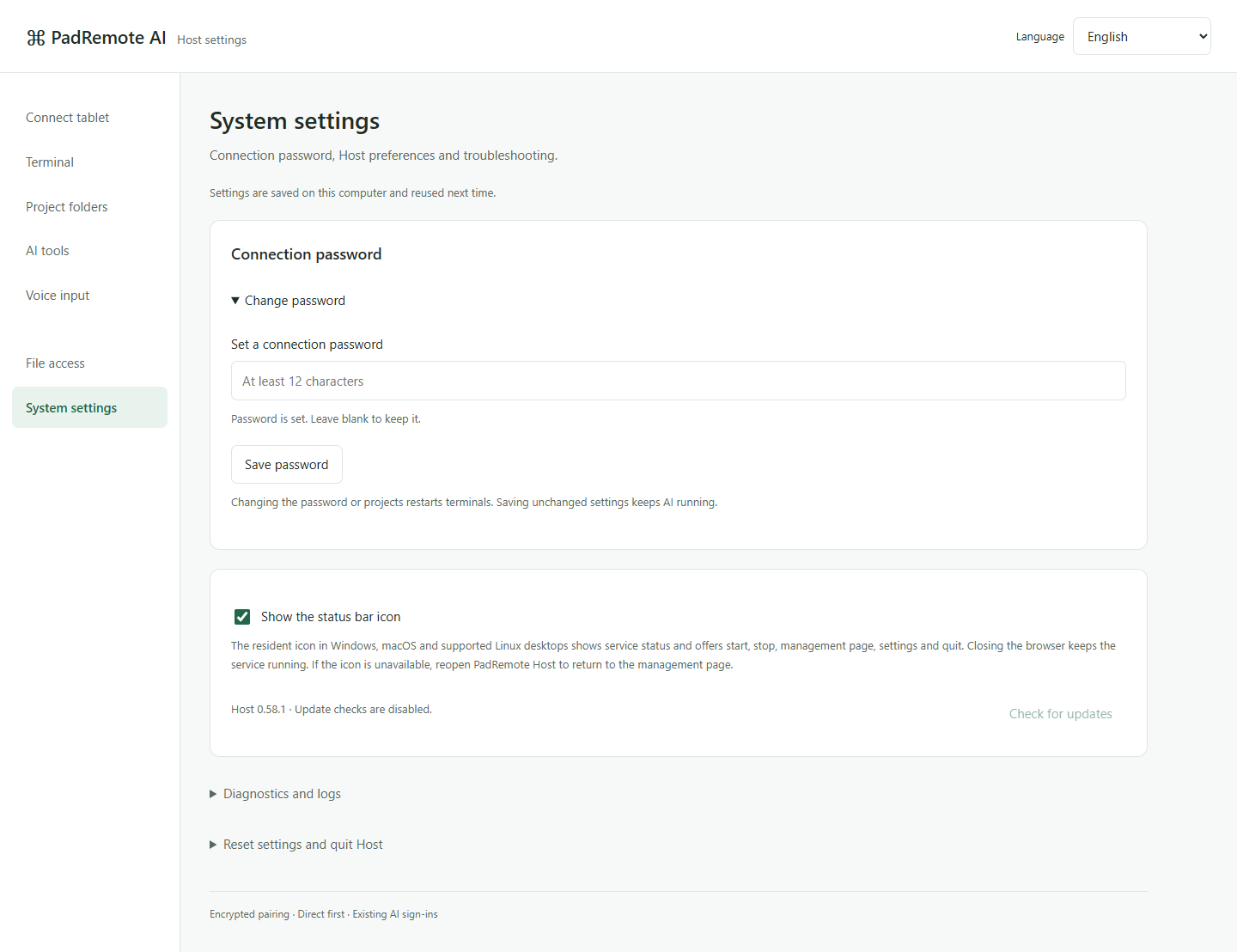
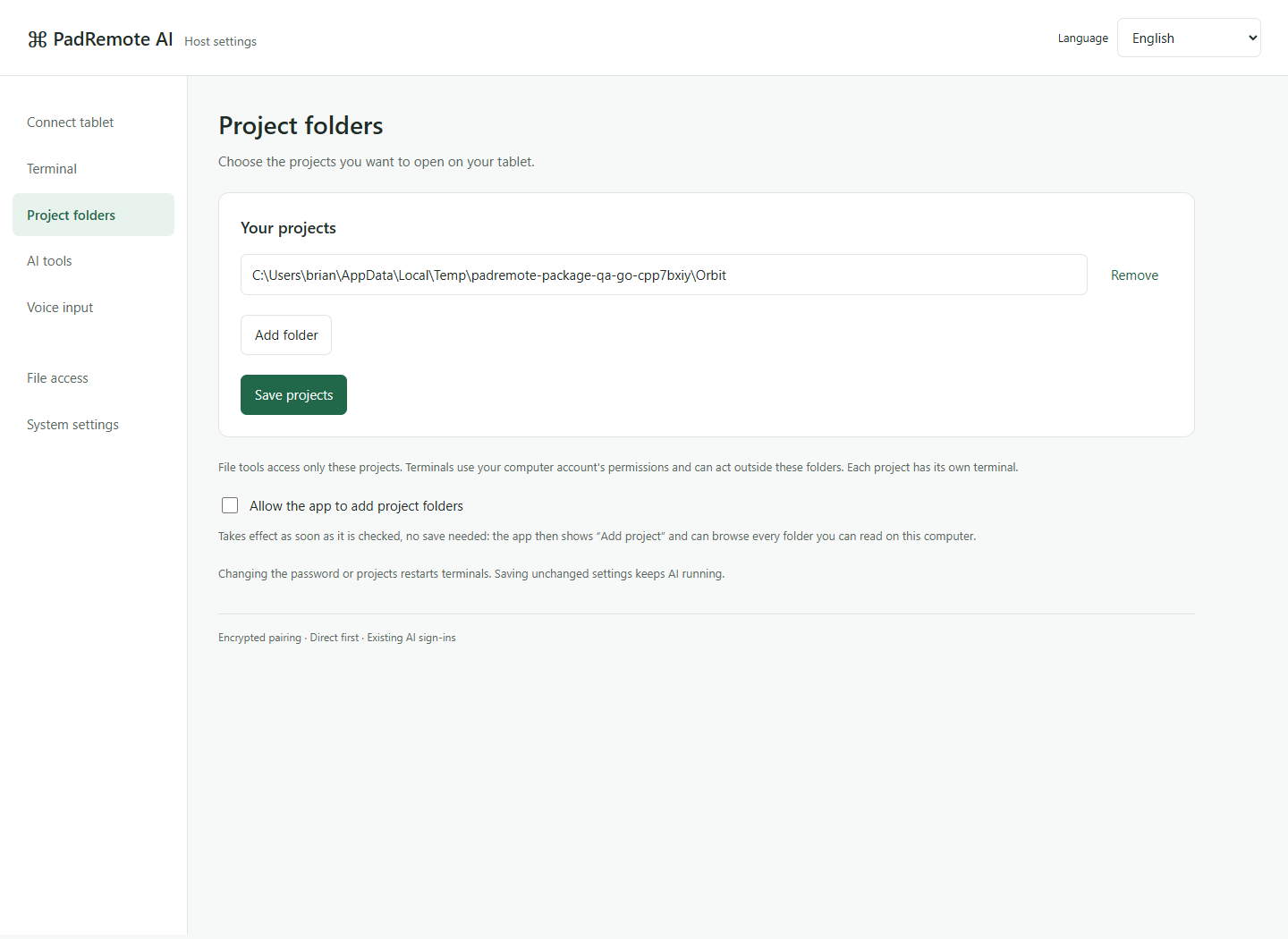
In the local Host management page, set a connection password of at least 12 characters, add the full path of an allowed project folder and save.
Installers do not yet have full Windows publisher signing / Apple notarization. Follow your device’s installation policy.
02 — APP
Your phone or tablet
Get the app from Google Play on Android or the App Store on iPhone/iPad. Sign in after installing; connecting requires an active subscription.
03 — CONNECT
Connect and try your first task
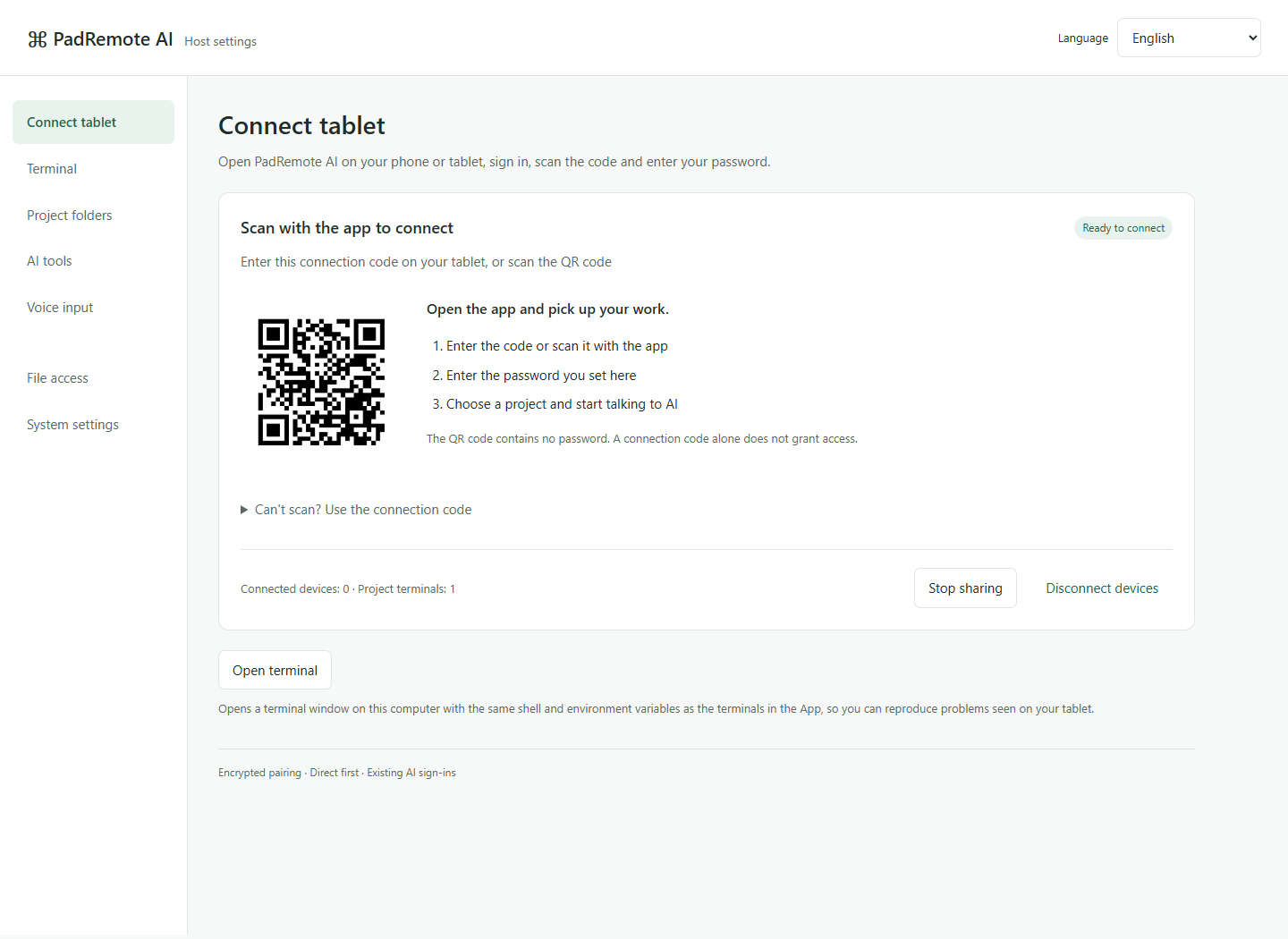
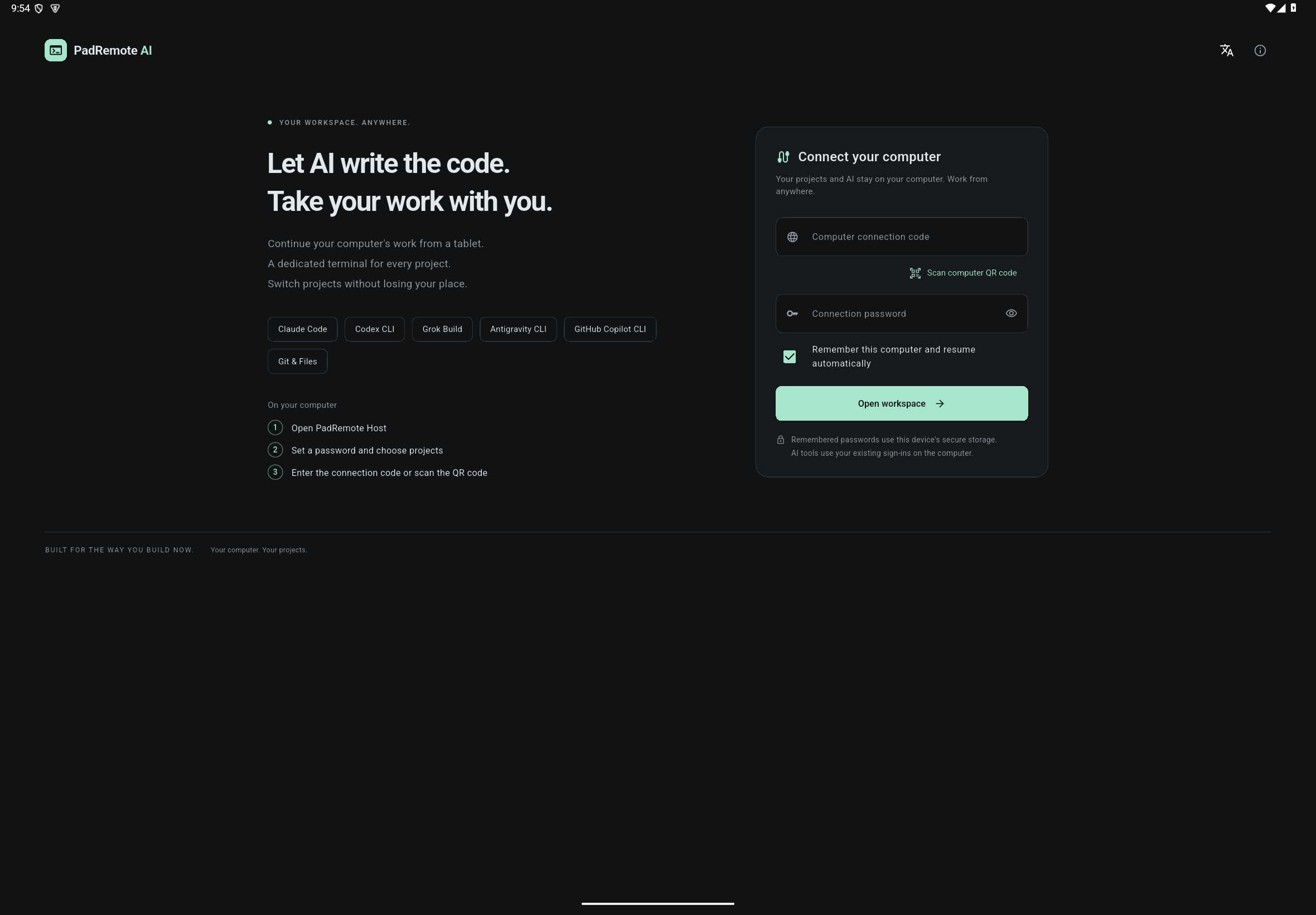
- Sign in to the app, then scan the QR code in the Host page or enter the connection code manually.
- Enter your connection password. QR codes do not contain it. Keep private Host management URLs to yourself.
- Choose a project, open a file, then select a signed-in AI tool and send a simple request.