PADREMOTE AI / User guide
Install desktop Host
Install the correct desktop package, then set a password and an allowed project folder.
On this page
Before you start
Windows needs 64-bit Windows 10 or later and macOS needs version 13 or later. On Linux, choose DEB or RPM for your distribution. Every platform has x64 and ARM64 packages. Install Git first and sign in to your AI tools under the same user account. You do not need Go, Node.js or Flutter.
Step by step
- Open Get started and choose your platform and processor. Most Intel/AMD computers use x64; Apple Silicon and other ARM processors use ARM64.
- On Windows, run the .exe setup wizard. On Mac, open the .pkg; it installs into your own
~/Applications. On Linux, install the .deb or .rpm with your package manager. - Open PadRemote Host from the Windows Start menu, from
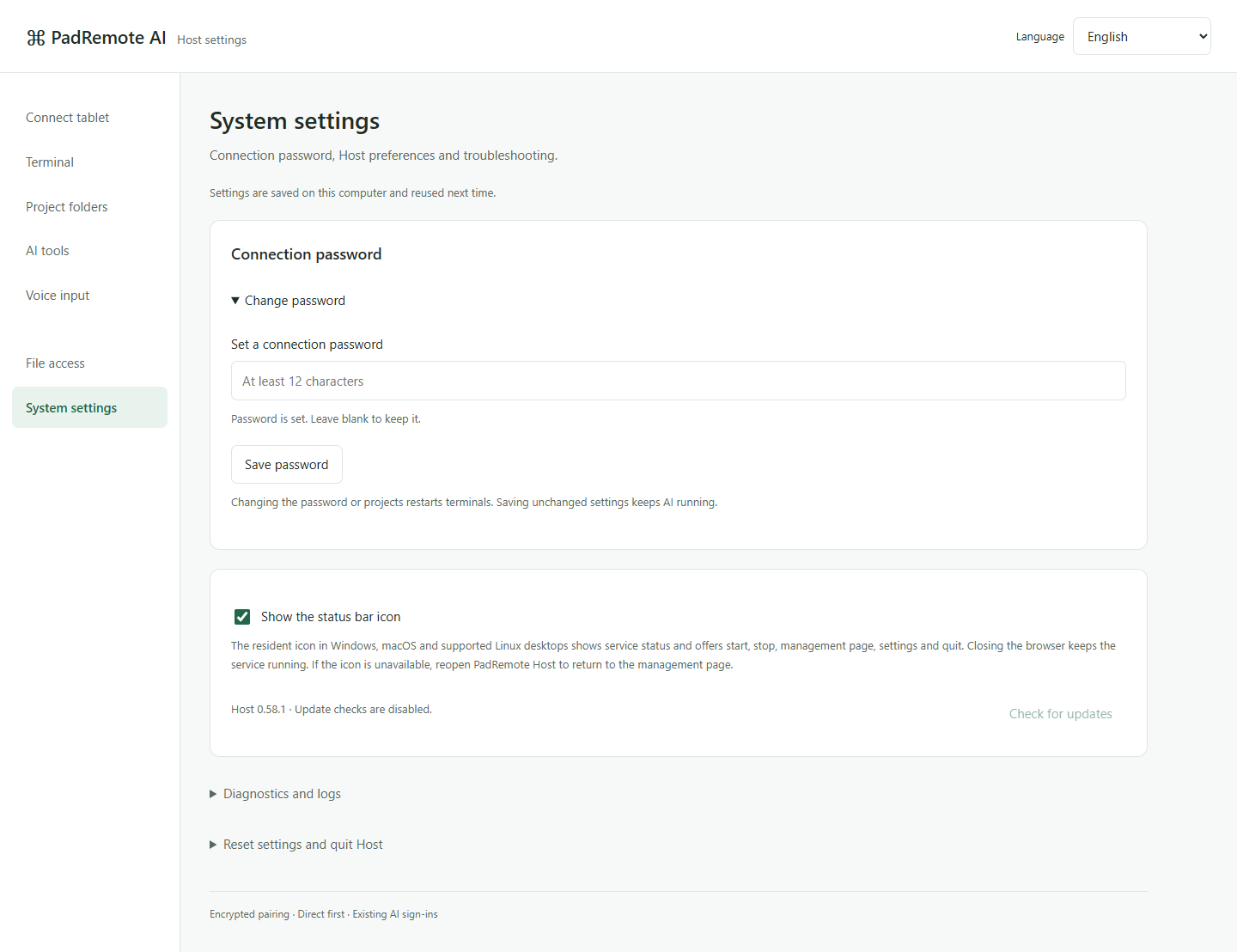
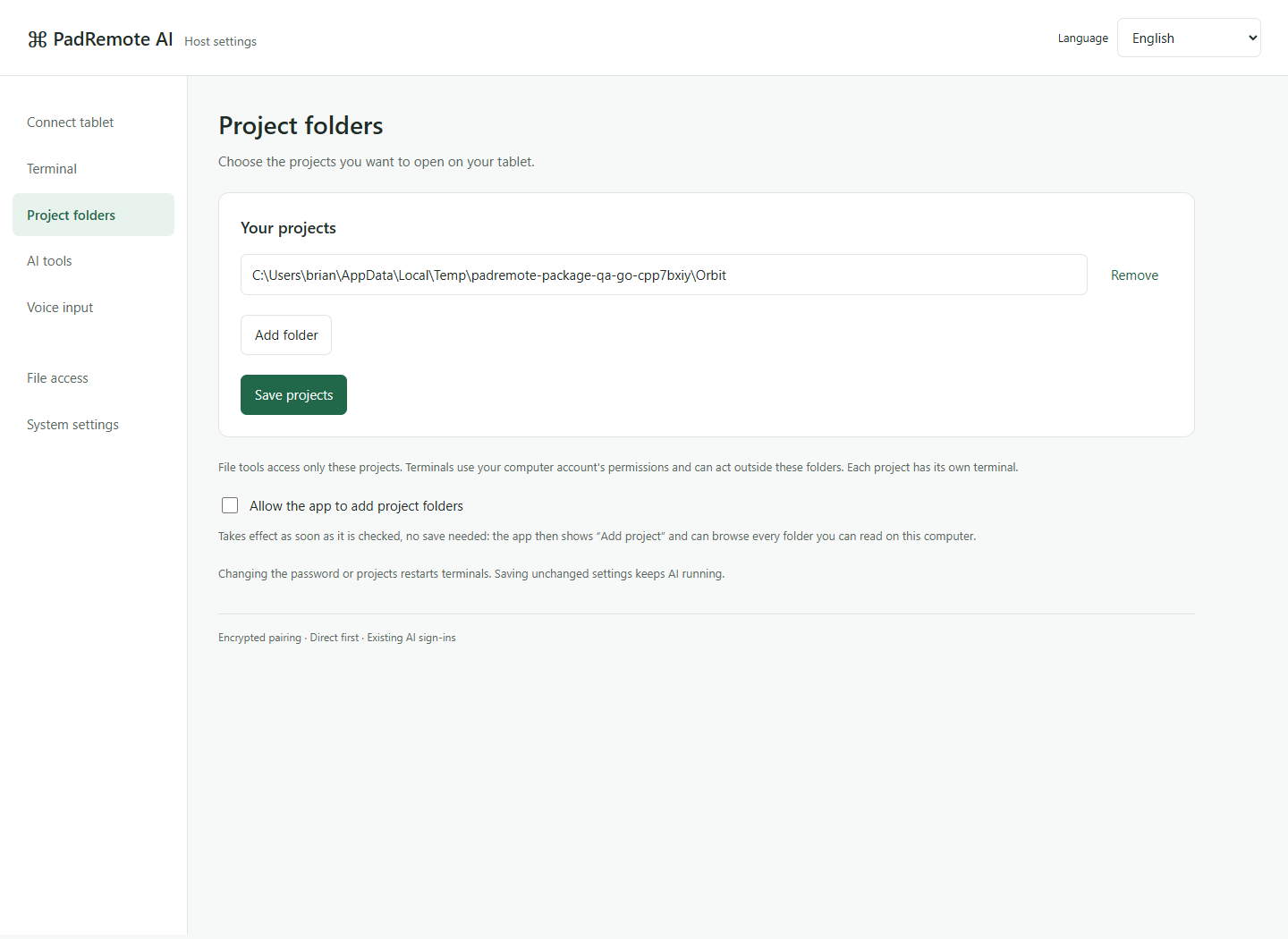
~/Applicationson Mac, or from the Linux app menu or thepadremote-hostcommand. - Host opens the management page at First-time setup: set a connection password of at least 12 characters, add the full path of a project folder, then choose Save and start sharing.
- Check that the Connect tablet page shows a connection code and QR code. Continue to first connection.
Check the result
Connect tablet shows the sharing status, connection code and QR code, and Project folders lists the projects you added. To let the app add projects later, turn on Allow the app to add project folders. Closing the browser tab does not stop Host.
If something goes wrong
If the management page does not appear, open PadRemote Host again or choose Settings from the system tray icon's menu. Current packages do not yet have full Windows publisher signing or Apple notarization, so your system may show a warning; follow your device policy. If an AI tool is not detected, follow the instructions on the AI tools page to import your terminal's PATH, then choose Detect again.