PADREMOTE AI / User guide
Images & attachments
Upload images or files to the development computer, then hand them to the current AI conversation.
On this page
Before you start
Choose a project and AI tool and wait for the terminal to connect. Understanding images needs a model with vision (in Codex you can switch with /model), and whether documents can be read depends on the AI tool on the computer.
Step by step
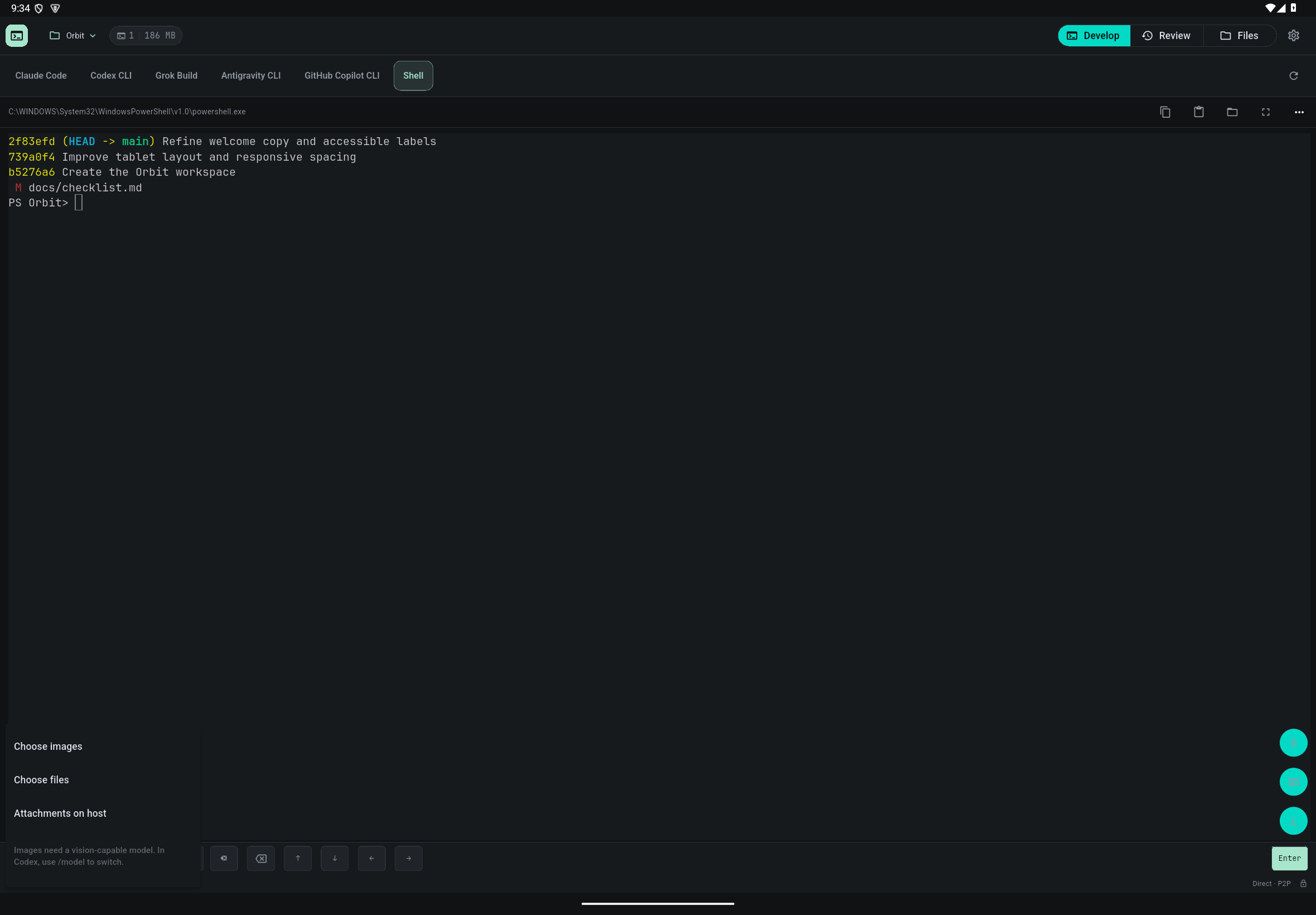
- Tap the paper clip "Add images or files" below the terminal and choose "Choose images" or "Choose files".
- Wait until each attachment shows "Uploaded". Tap a thumbnail to preview it and see its path on the computer. If an upload fails, tap "Retry upload" or remove it.
- When everything is uploaded, tap "Insert attachments into terminal" next to the attachment strip. The paths are placed in the AI's input and are not sent automatically.
- Type your request, such as "Update the home page to match this screenshot", check the current AI and press Enter.
- Later, use "Attachments on host" in the paper clip menu to add a file again or delete files you no longer need.
Check the result
Attachments are stored in the .padremote-attachments folder inside the project on the computer (excluded from Git). Only their paths are handed to the current AI conversation; no new AI session is opened and nothing is stored on the coordination service.
If something goes wrong
Each attachment can be up to 25 MiB, and a message can carry up to 10 attachments totalling 100 MiB. Each project has about 500 MiB of attachment space; when it is full, delete attachments you no longer need. Uninstalling the app does not remove attachments from the computer. After you delete a host attachment the AI can no longer read it, but content already in the AI conversation is not deleted.