PADREMOTE AI / User guide
Use voice input
Tap the microphone in the app and speak. Our speech recognition server turns the recording into corrected text, which you review before it goes to the terminal.
On this page
Before you start
Voice input requires an active PadRemote AI subscription (including the 7-day free trial) and microphone permission on your phone or tablet. Nothing needs to be installed on your computer, and Host has no voice settings. Recognition does not go through your computer, but the app still needs its connection to the computer to paste or send the text into the terminal.
Step by step
- Open a project and terminal in the app, then tap the microphone. The first time, allow microphone access when the system asks.
- Say what you need, then tap the microphone again to stop recording.
- Wait for recognition to finish. The recording is encrypted and sent directly to the PadRemote AI speech recognition server, which returns corrected text to the app.
- In Review voice input, read and edit the text. Choose Paste only to put it into the input, or Send to paste and execute.
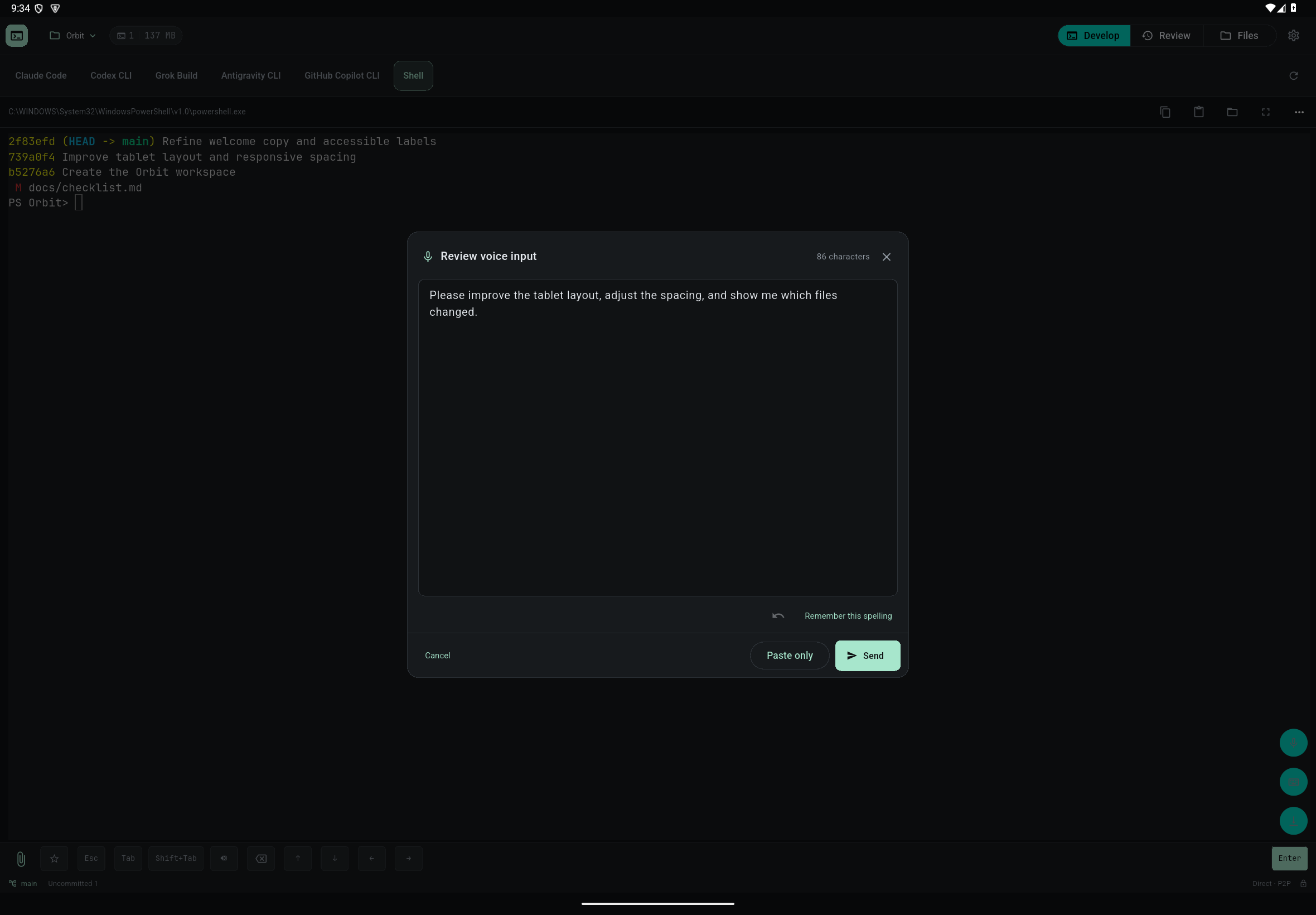
Check the result
You always see the text first; it is never handed to AI without your review. The app encrypts the recording end to end at the application layer and sends it directly to our speech recognition server in Taipei, Taiwan. Cloudflare, which carries the traffic, sees only encrypted data.
The server processes the recording only in memory and deletes it immediately after recognition: it is not written to disk, not stored and not used to train models. Once the text is returned to your device, the server does not keep it. See the privacy policy.
If something goes wrong
- If the server is busy, wait a moment and try again.
- If the app cannot connect, check the network on your phone or tablet, or try another network.
- If you are asked for a subscription, open Settings in the app and check that you are signed in and your subscription or free trial is active.
- If no audio is captured, check the microphone permission for PadRemote AI in system settings and whether another app is using the microphone.
- Split long requests into shorter recordings; they are easier to review and edit.
- If the text cannot be pasted or sent, check that the app is still connected to your computer; see Connection help & diagnostics.