PADREMOTE AI / User guide
Shortcuts & slash commands
Use the key row, the slash command menu and saved commands instead of typing special keys on a tablet or phone.
On this page
Before you start
Choose the AI you want to control. Slash commands depend on the tool and its version; Shell has no slash command menu.
Step by step
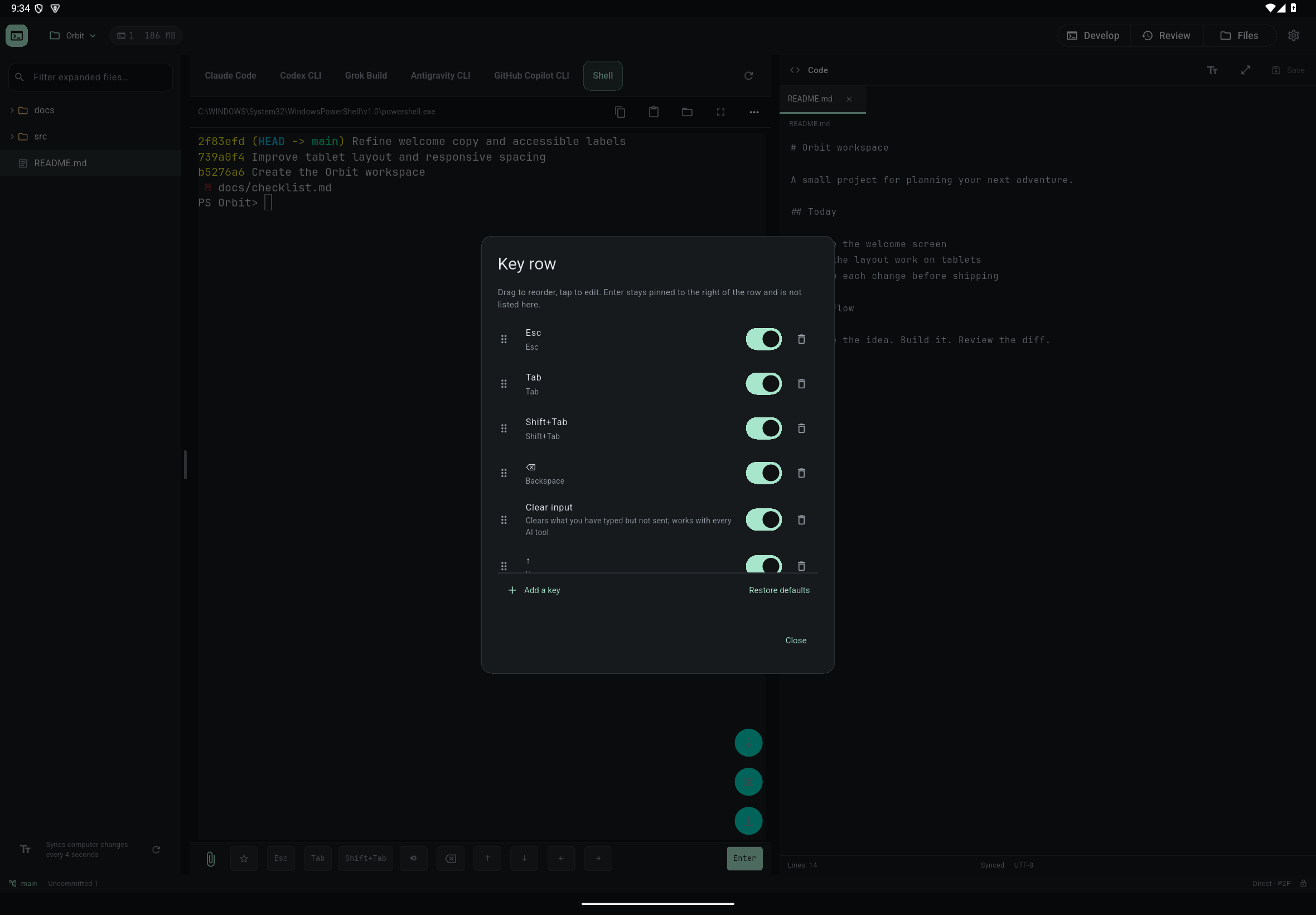
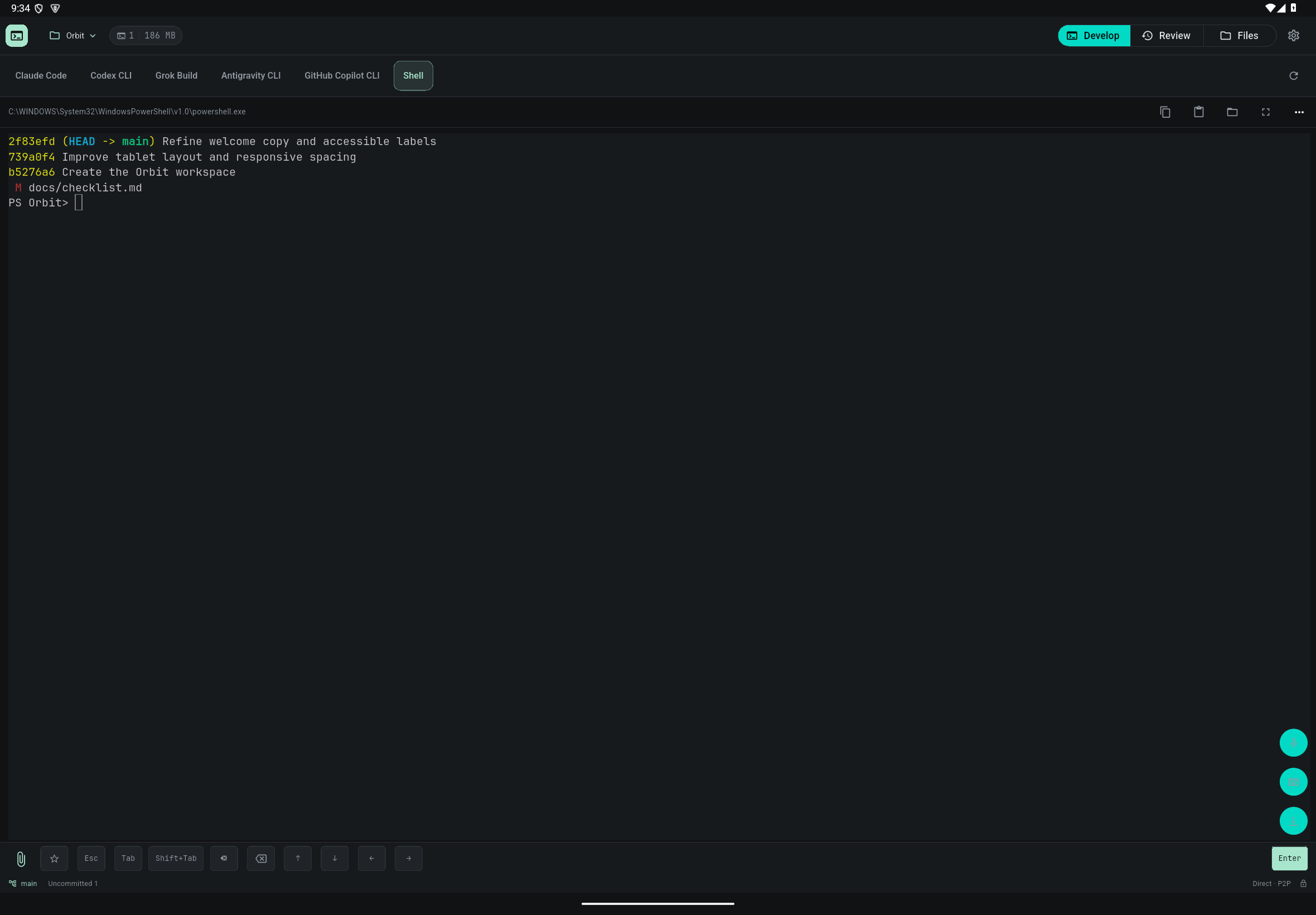
- Tap the key you need in the key row below the terminal. By default it has Esc, Tab, Shift+Tab, ⌫, Clear input and the arrow keys, plus Alt+M for Claude Code and /permissions for Codex CLI.
- Go to Settings → Key row → Edit keys to reorder keys, add key combinations or text, and limit a key to a specific AI.
- Tap the "/" button in the terminal header (on a phone, "/ Command" at the left of the input bar) to search or pick a slash command for the current AI.
- The command is placed in the prompt followed by a space and is not sent automatically. Add any arguments, then press Enter.
- Buttons such as /clear, /model and /compact at the end of the key row send their command immediately. Only commands the current AI supports are shown.
- Entries marked "This project" or "Personal" in the menu are your own commands or skills from the computer. Check their scope before using them.
Check the result
The key row is stored on this device. It is not sent to the Host and does not change other devices. To keep a message you use often, long-press ☆ or tap "Save current line" after typing it; tap ☆ later to use it again.
If something goes wrong
The built-in list works offline. The app downloads newer lists in the background and keeps the current one if a download fails. Tool upgrades can change commands, so follow the tool's own help for unsupported commands. Descriptions of your own commands are shown as written and are not translated.