PADREMOTE AI / User guide
Terminals & sessions
Send requests, switch AI sessions, and understand disconnecting, restarting and who owns a terminal.
On this page
Before you start
Connect to a project and choose an AI tool. The phone and tablet app must be signed in to connect. First sign-in to an AI tool or permission prompts may need attention on the computer.
Step by step
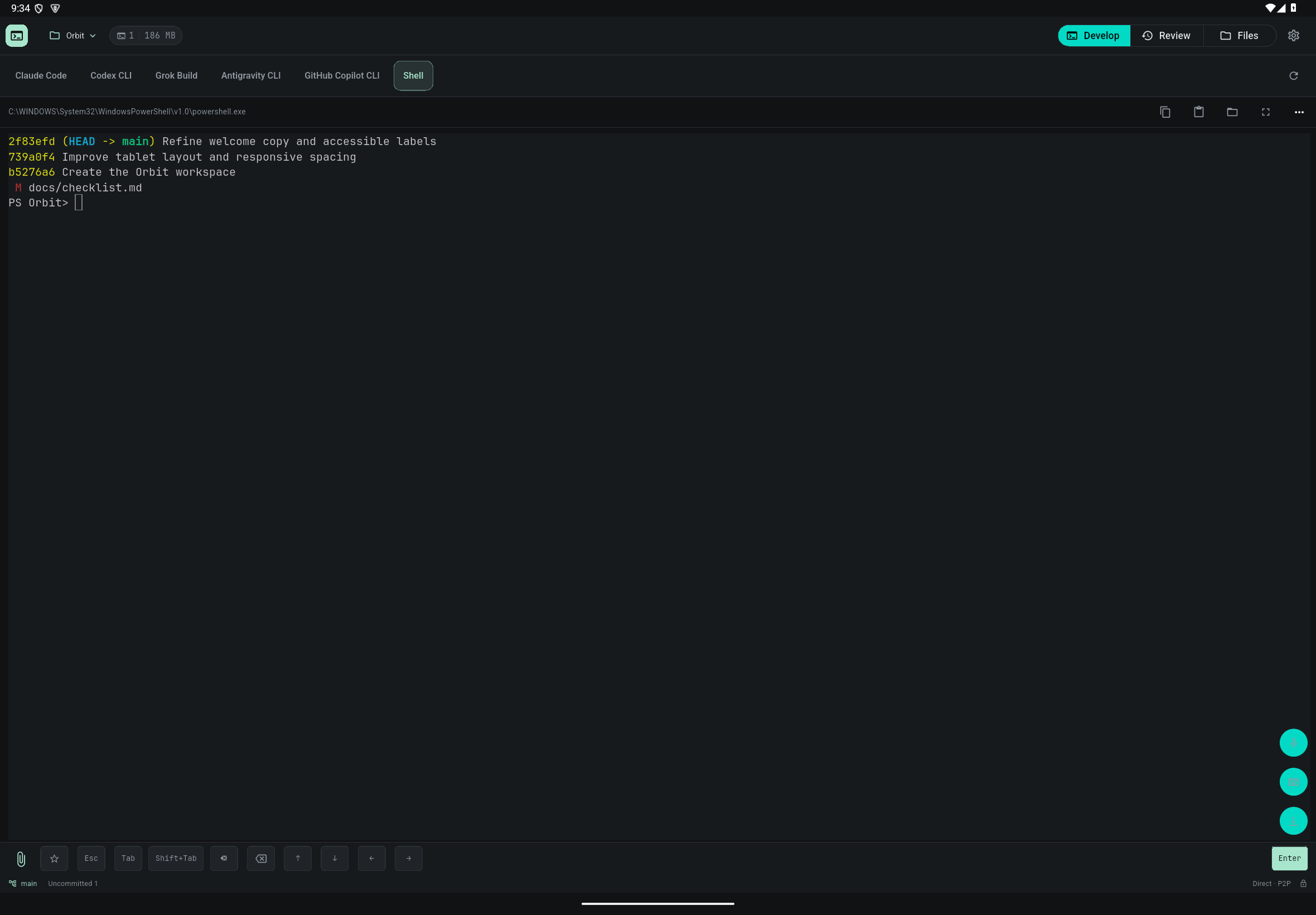
- On a tablet, tap the terminal or the On-screen keyboard button to bring up the keyboard, or use an external keyboard. On a phone, tap "Enter a message…" at the bottom to start typing.
- Confirm the project and AI tool before sending. Enter is always pinned at the right end of the key row.
- Scroll up to review output and use Jump to latest output to come back. Keys that the AI tool shows on screen appear as buttons above the terminal, so you can tap them to answer prompts.
- Switch to another tool or project, then return to the original session. Switching away does not stop the AI on the computer.
- If the network drops, let the app reconnect on its own. Do not restart the terminal just to reconnect.
Check the result
Going offline in the app does not end the AI on the computer while the computer and Host keep running. "Disconnect (terminals keep running)" in Settings also keeps terminals; only "Disconnect and end all terminals" ends them. Terminals belong to the account you signed in with: devices on the same account share them, and other accounts cannot see or operate them. History and conversation-resume features depend on the AI tool.
If something goes wrong
Restart terminal in Terminal options (⋯) stops the AI and commands running in that project. Use it only when you mean to start again. When the AI exits, the terminal returns to the shell prompt; if the terminal itself has ended, an "Open a new dedicated terminal" button appears. Stopping or updating the Host is different from disconnecting the app and interrupts sessions. On macOS/Linux with tmux installed, terminals run inside tmux and can be reattached; on Windows or without tmux, ending the Host ends the programs.