PADREMOTE AI / User guide
Manage and update Host
Find the management page, control Host, confirm updates and inspect local diagnostics.
On this page
Before you start
Host runs as the current computer user. Before stopping or updating Host, check active AI work and unsaved changes.
Step by step
- Open the Host menu from the Windows notification area, the Mac menu bar, or the tray on supported Linux desktops. The menu shows service and update status.
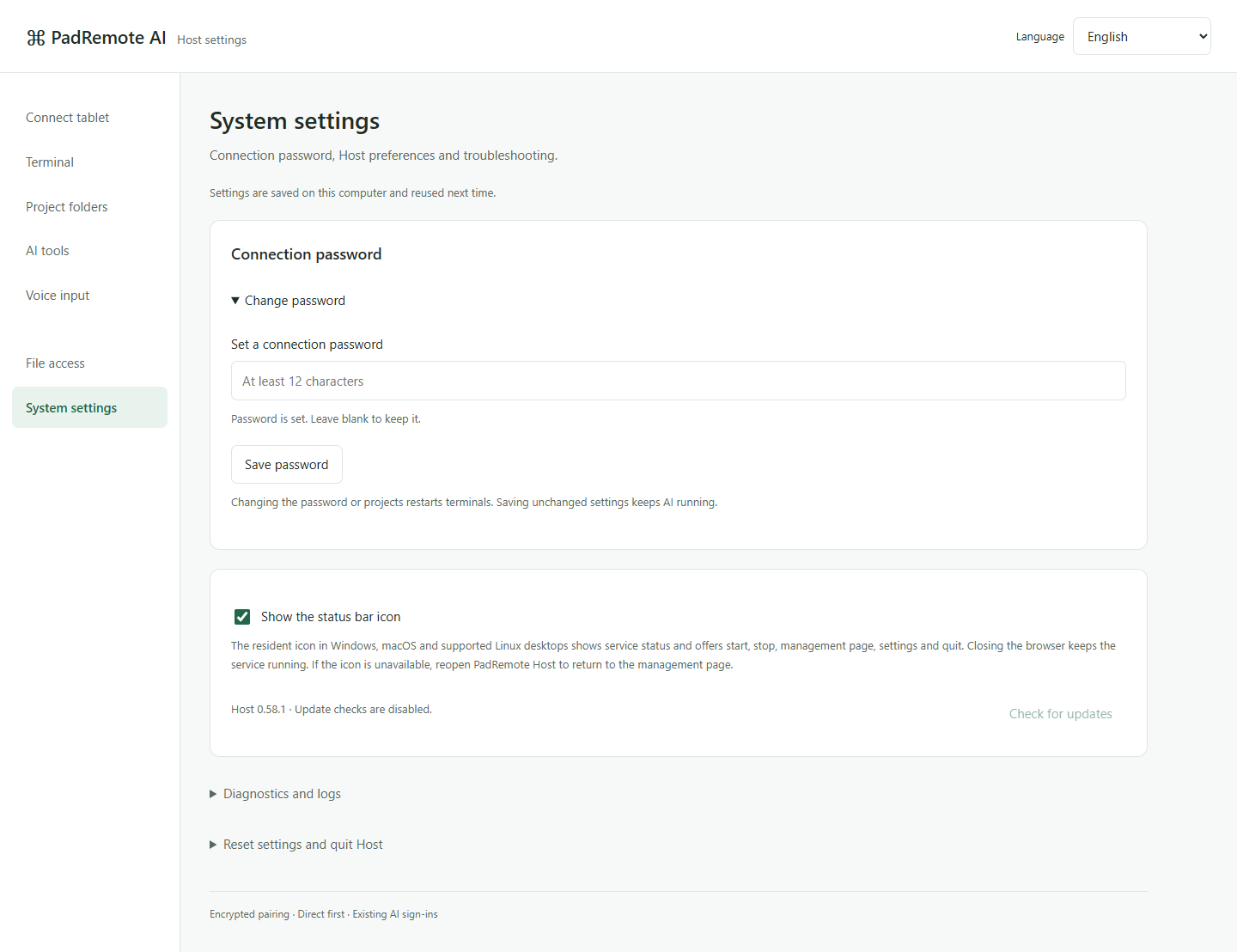
- Choose Settings to open the management page. Choose Terminals… to see running terminals and open the same screen on the computer to keep working there. If there is no icon, open PadRemote Host again.
- To pause sharing, choose Stop sharing on the Connect tablet page or Stop service (disconnect sessions) in the menu; both disconnect devices and end project terminals. Disconnect devices only drops connected devices, which then need the password again. To exit completely, choose Quit PadRemote Host.
- Host checks for updates once after it starts. You can also choose Check for updates in the menu, in System settings, or under Settings → Host in the app. A new version is only announced; nothing installs until you confirm (Download and update on the management page, or a second click in the menu). When the app is newer than Host, it shows New Host version available after connecting, with Update now or Later.
- In System settings, expand Diagnostics and logs to review recent errors. Use Export diagnostics if needed, and review the contents before sharing.
Check the result
Closing the management page does not stop Host. Updating restarts Host and disconnects devices and current terminals; afterwards, reopen the management page to confirm the version. If a new version fails to start, the previous version is kept. You do not need to remember the local port.
If something goes wrong
On Windows, uninstall from Installed apps. On Mac, use Uninstall PadRemote Host in ~/Applications. On Linux, use your package manager. Removing the program keeps your settings and project files; exported files remain yours to manage. Diagnostic logs stay on this computer for 7 days, up to 10 MB, never record passwords or terminal content, and are not uploaded automatically.