PADREMOTE AI / User guide
Choose and configure AI
Choose the AI tool for a project and handle installation, first sign-in and launch arguments.
On this page
Before you start
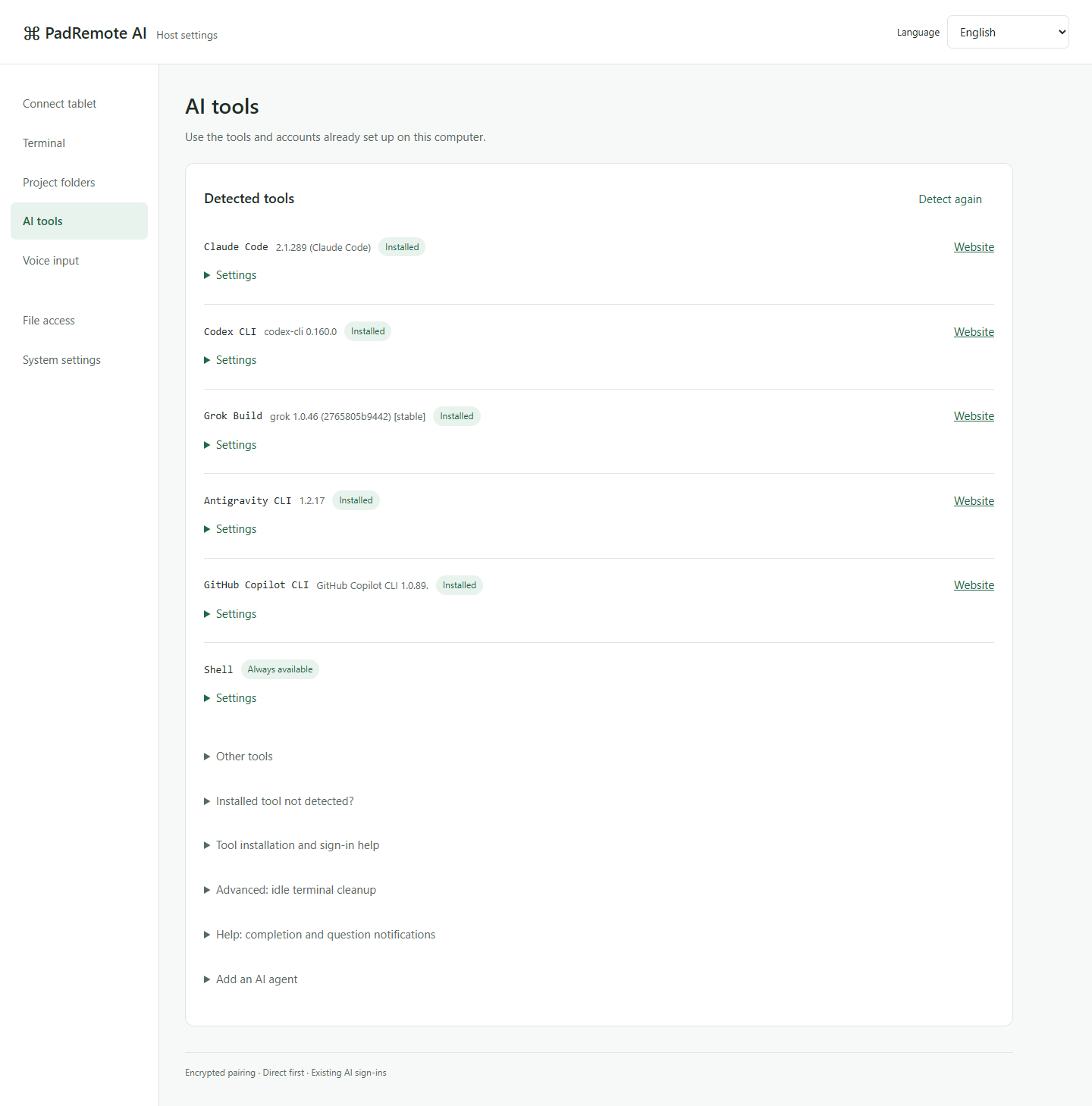
Install and sign in to the AI CLIs you want on the development computer yourself. Claude Code, Codex CLI, Grok Build, Antigravity CLI, GitHub Copilot CLI and Shell are built in; what you can use depends on what the Host actually detects. PadRemote AI does not include an AI subscription and never installs programs on your computer.
Step by step
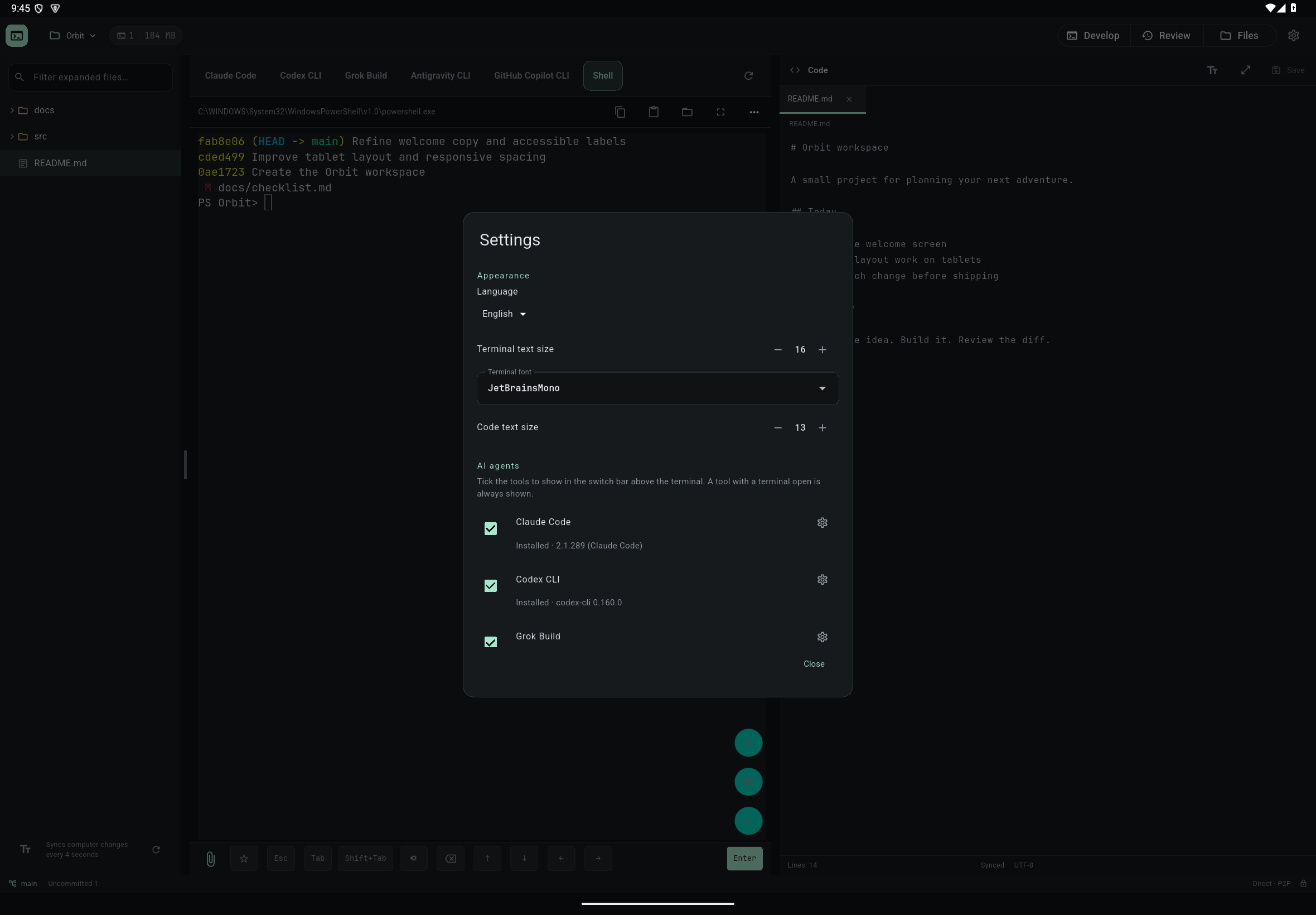
- Opening a project starts that project's default AI automatically. Tap another detected tool in the switch bar above the terminal to switch (on a phone, switch from the terminal header).
- Press and hold a tool to choose "Make this the project's AI agent" or close that AI's terminal.
- If a tool is not installed, follow the app's instructions to install it on the computer, then tap "Detect again". For tools that need a browser sign-in the first time, finish signing in on the computer before using them.
- In Settings → AI agents, tick the tools to show in the switch bar. The choice is stored on the Host and shared with the management page. A tool with a terminal open is always shown, and Shell cannot be hidden.
- For extra arguments, use "Launch arguments" next to a tool (for example --model opus). They apply only to terminals opened afterwards. Do not make permission-skipping flags your default.
Check the result
A project can keep a separate terminal for each AI. Switching tools only changes which one you watch and type into; AIs in the background keep running.
If something goes wrong
If an installed tool is still not found, tap "Detect again" first. If that does not help, open "Installed tool not detected?" under AI tools on the computer's management page and run the command shown in a terminal where the tool starts, to import that PATH, or expand the tool's Settings and enter its full executable path. If it shows "Found but will not run", check on the computer that the tool starts normally. Other CLIs can be added with "Add an AI agent" on the management page, but tools you add yourself may not support features such as notifications.