PADREMOTE AI / User guide
Review Git changes
Review uncommitted changes, stage and commit them, and inspect the file diffs in each Git commit.
On this page
Before you start
The project folder must be the root of a Git repository, and Git must be installed on the computer. Without a repository, or when a subfolder is opened as the project, the app shows Git is not set up here.
Step by step
- On a tablet, tap Review at the top. On a phone, tap the Git tab at the bottom.
- In Uncommitted, see the changed files and their state (Unstaged, Staged, New file). Tap a file to read its diff.
- Use Stage changes or Unstage to choose what to commit, enter a commit message and tap Commit · N staged. Only staged files are committed.
- Switch to Commits and search by commit, author or SHA. Tap a commit to see its files, then pick a file to read its line-by-line diff or Full source.
- Use Mark as reviewed on commits or files to track your progress. After AI makes more changes, tap Refresh to get the latest state.
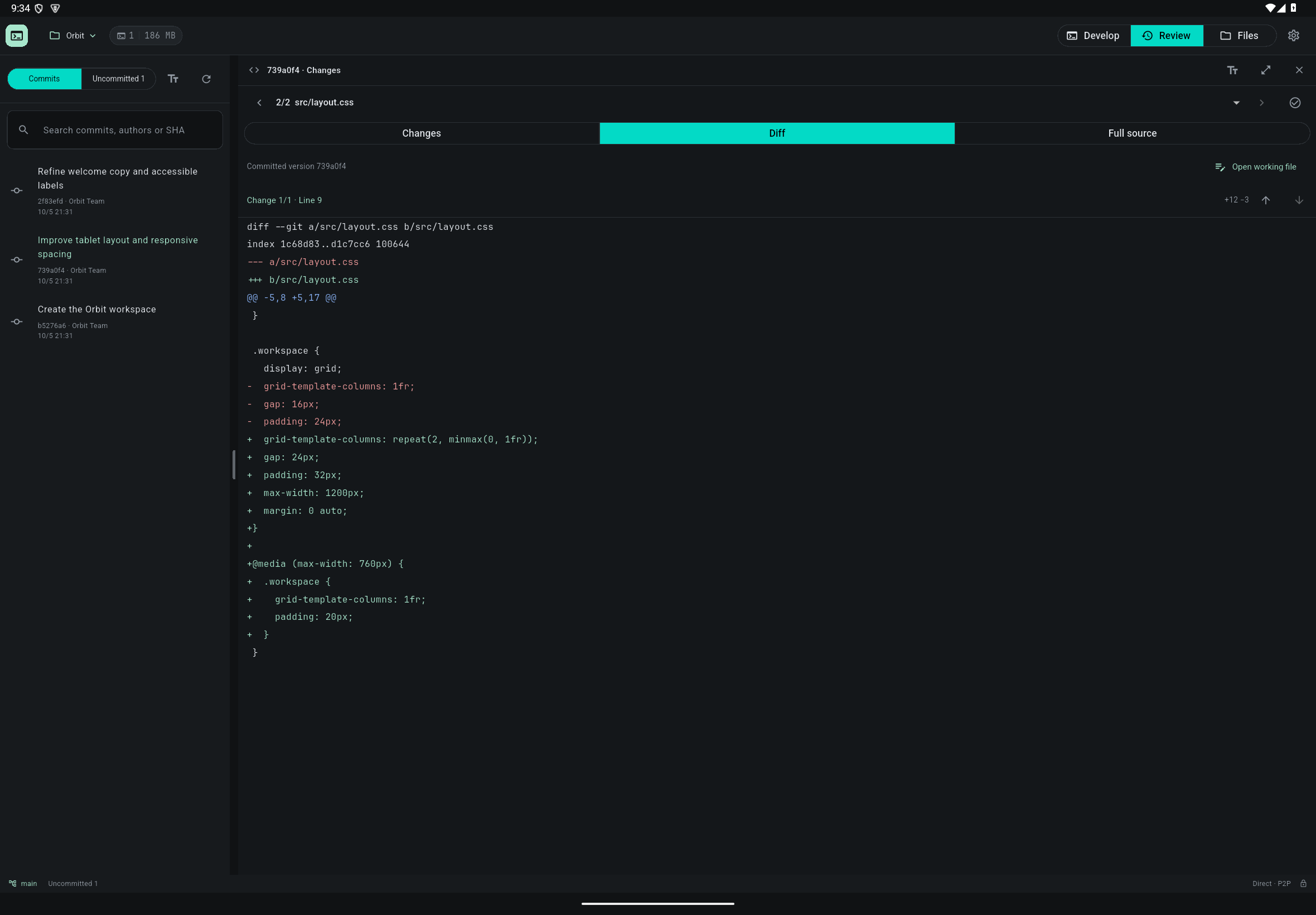
Check the result
You can tell uncommitted work apart from versions saved as Git commits. History follows real commits; AI replies are not automatically turned into versions.
If something goes wrong
If no history appears, make sure the folder is a Git repository with at least one commit; use Load older commits to see earlier ones. Binary files have no text diff. On a phone, the Git tab can Push to the upstream configured for the current branch after you confirm; if there is no upstream, set one in the terminal first. Push never forces the remote, and it fails if the computer would need to ask for a password or SSH passphrase, so handle that in the terminal. Run other Git operations, such as switching branches or merging, in the terminal and check their impact first.