PADREMOTE AI / User guide
App & first connection
Pair the mobile app with your own computer and verify the first connection.
On this page
Before you start
Host is set up and the computer is awake. Install the app from the App Store or Google Play on your phone or tablet. Phones and tablets must be signed in to a PadRemote AI account with an active entitlement before they can connect.
Step by step
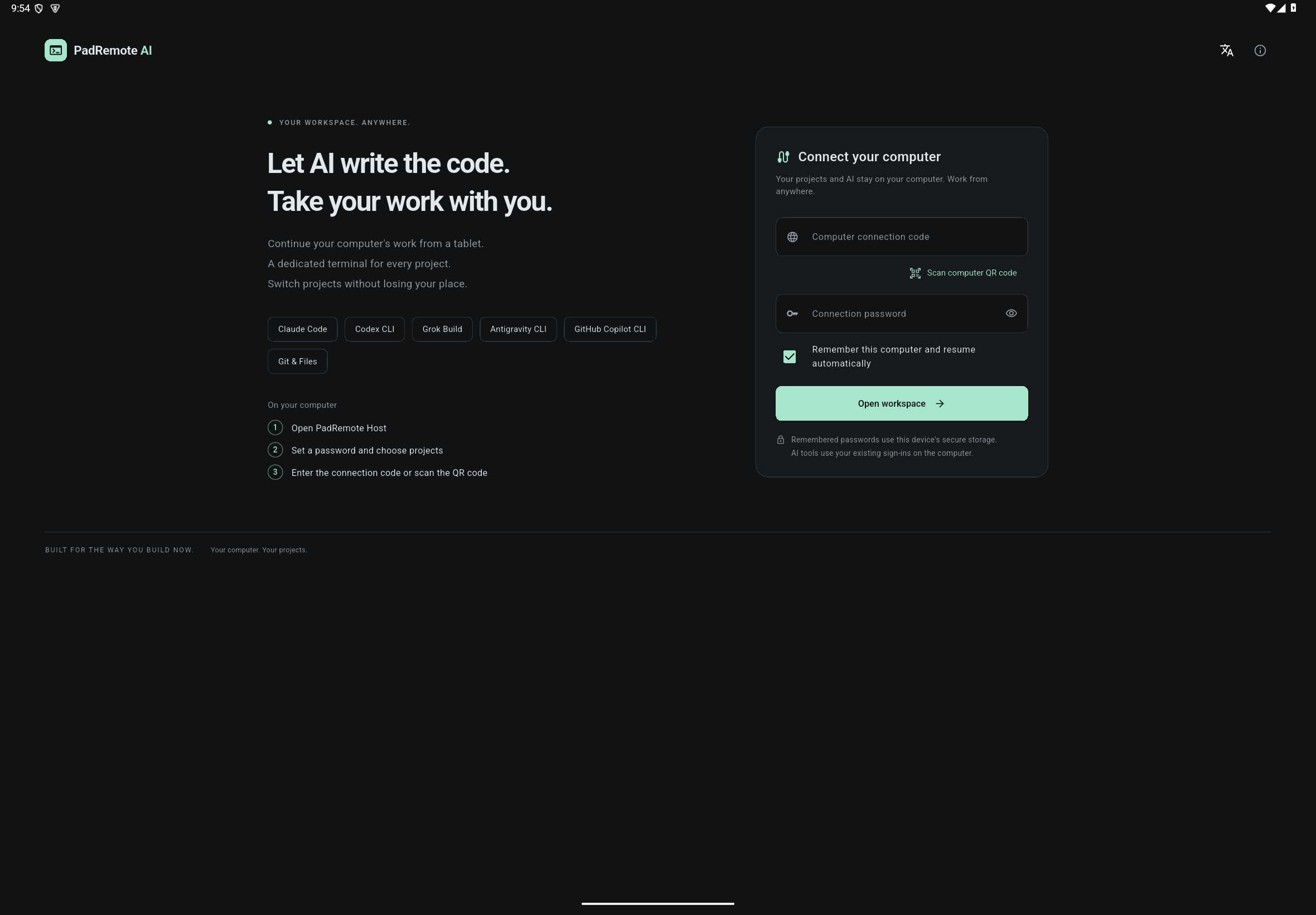
- Open the app. Under Sign in to PadRemote AI, enter your email and the code you receive, or use Apple or Google sign-in if offered. If you have no entitlement yet, subscribe as shown or choose Restore purchases.
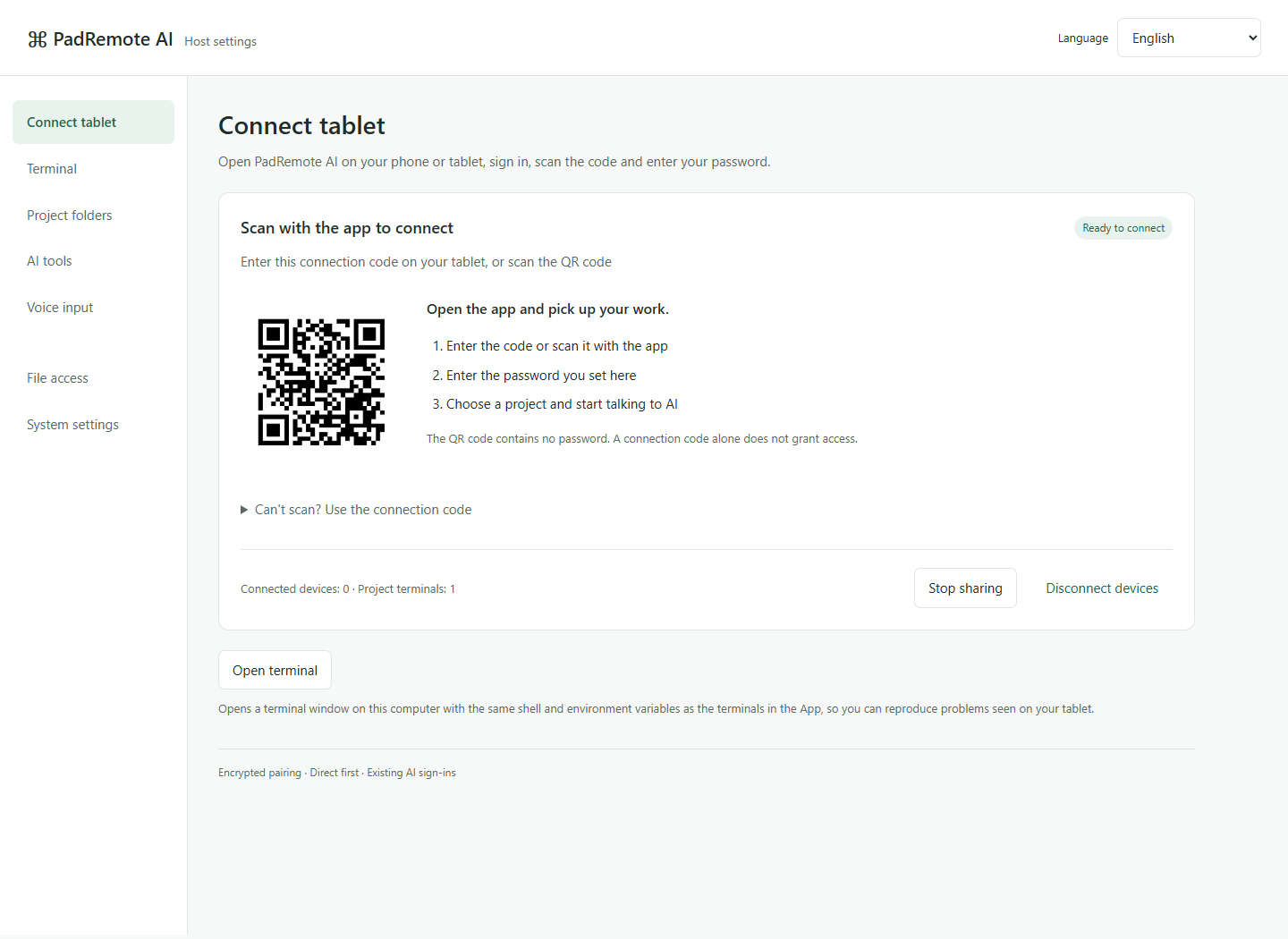
- On the computer, open the Connect tablet page of the Host management page to find the connection code and QR code.
- In the app, tap Scan computer QR code and allow the camera only for scanning, or type the code into Computer connection code.
- Enter the connection password you set (the QR code never contains it). Optionally tick Remember this computer and resume automatically, then tap Open workspace.
- Once connected, choose a project, open a text file to confirm it loads, then try the AI terminal.
Check the result
The app shows your projects and workspace; nothing is uploaded to this website. The connection uses encrypted P2P first and switches automatically to an encrypted relay via EC2 if a direct connection fails; the management page shows Direct · P2P or Relay · via EC2. Each account sees only the terminals it opened, while files and Git are shared. One account can register up to 5 phones or tablets; when a sixth signs in, the others must sign in again.
If something goes wrong
If scanning fails, type the code. If the password is rejected, check or change it under Connection password in System settings on the management page; after several quick attempts Host refuses pairing for a while, so wait and retry. If the connection never completes, the app opens Connection diagnosis automatically to show which step fails; see also connection help. When an entitlement expires the app stops remote access, but terminals and AI on the computer keep running. Never share a management page URL containing private information.