PADREMOTE AI / User guide
Meet PadRemote AI
Understand the desktop Host and mobile app before setting up your remote workspace.
On this page
Before you start
Prepare a Windows, macOS or Linux development computer and an Android or iPhone/iPad phone or tablet. Get the mobile app from the App Store or Google Play. The phone and tablet app must be signed in to a PadRemote AI account with an active entitlement (such as a subscription) before it can connect.
Step by step
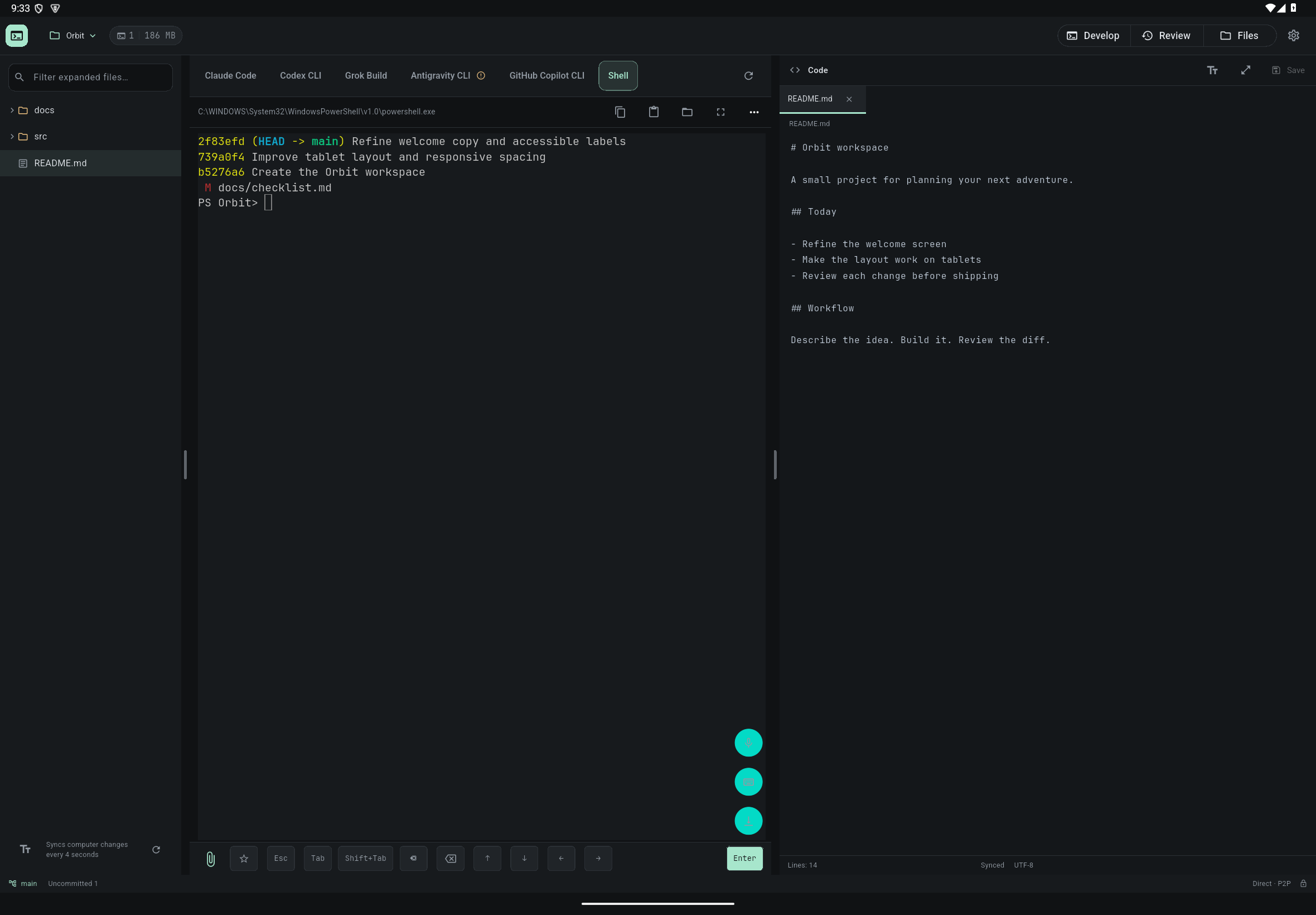
- Keep the project on your computer. Install Git and your AI tools under your normal computer account. Claude Code, Codex CLI, Grok Build, Antigravity CLI and GitHub Copilot CLI are supported out of the box; you can also use a Shell or add your own AI agent on the management page.
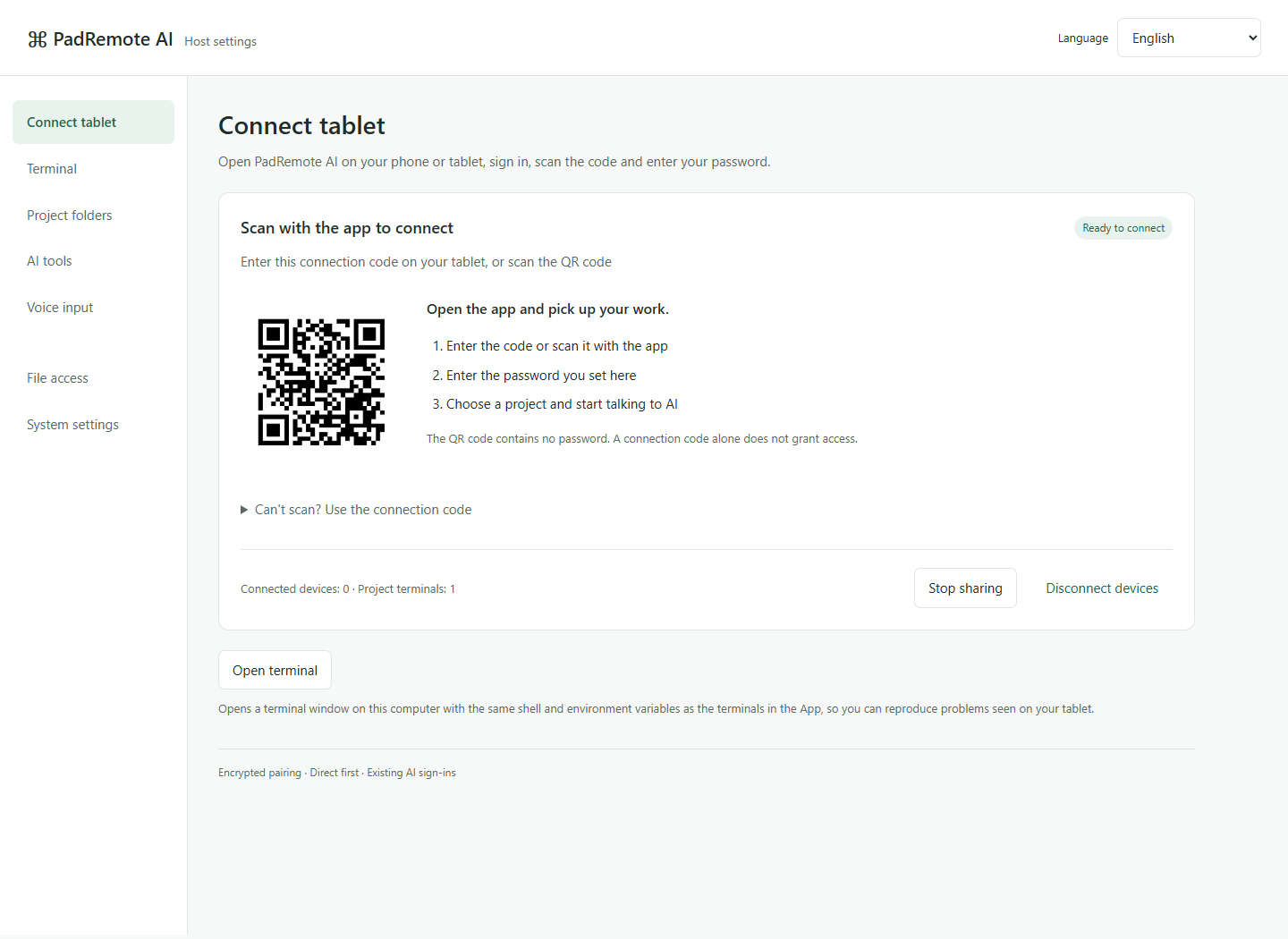
- Install PadRemote Host on that computer. It reads project files and runs terminals.
- Open the app on your phone or tablet, sign in, then pair with a connection code or QR code and a password.
- Open a project and move between the terminal, files and Git. On a phone, use the Terminal, Files, Git and Notifications tabs at the bottom of the screen.
Check the result
Work runs on your computer while the app provides remote controls. The connection uses encrypted P2P first and switches to an encrypted relay automatically if a direct connection fails. This website does not itself connect to your projects.
If something goes wrong
Keep the computer powered on and awake with Host running. AI tools use the sign-ins already on your computer, and usage is billed by each provider; PadRemote AI does not supply AI accounts. File tools are limited to the project folders you add, but terminals run with your computer account's full permissions, not in a sandbox.