PADREMOTE AI / User guide
Manage projects
Switch projects and control which folders the app can access.
On this page
Before you start
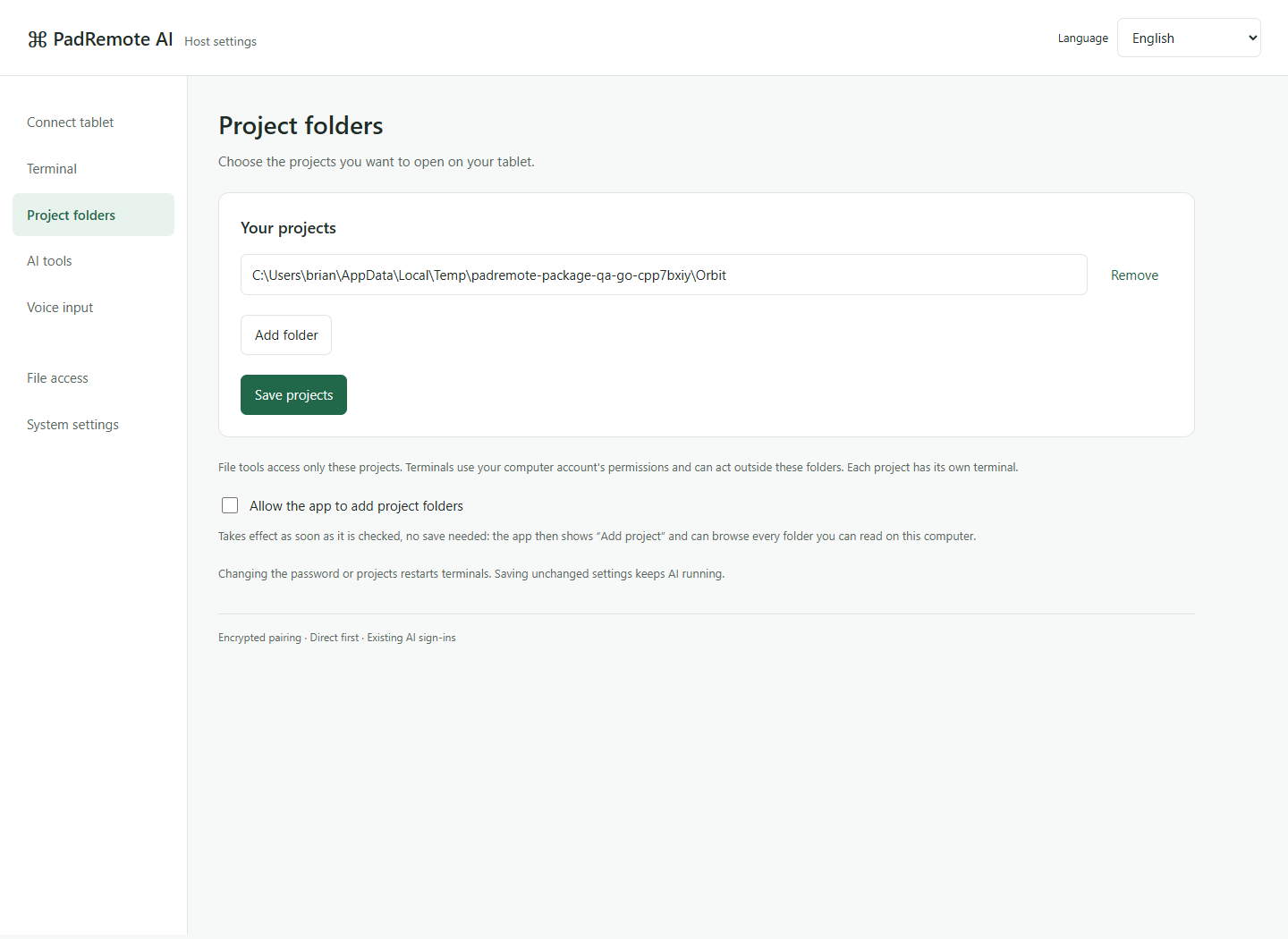
Connect to Host. Add at least one project under Project folders in the Host management page, or tick Allow the app to add project folders and add projects from the app instead.
Step by step
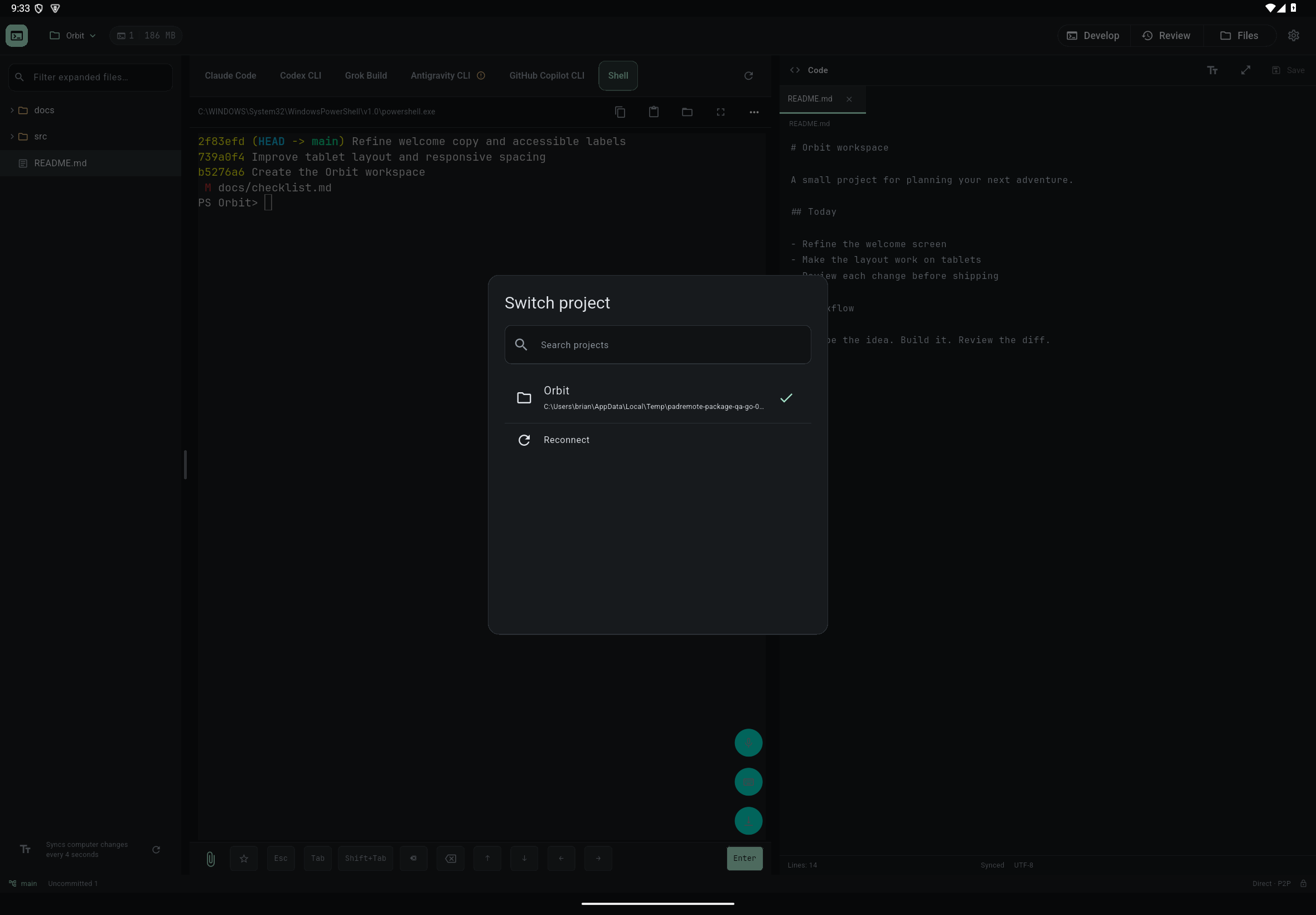
- Tap the project name at the top to open Switch project. Recently used projects come first, and Search projects filters by name or path.
- Choose the project to work on. Terminals and AI in the previous project keep running on the computer.
- When you switch back, its terminal, open files and unsaved edits are still there.
- To add a project from the app, choose Add project in Switch project, pick a folder with Browse Host folders or type the full path, optionally enter a project name, then tap Open project.
- In the Host management page, use Add folder and Remove under Project folders, then click Save projects.
Check the result
Each project has its own terminals and AI sessions, and switching projects does not end the previous AI process. File tools can only reach projects that have been added.
If something goes wrong
If Add project is missing, or the app says the Host does not allow adding projects from the app, the option is not ticked on the computer. Ticking it takes effect immediately and lets the app browse every folder this computer account can read, so enable it only for trusted devices. Changing the project list in the management page restarts terminals, so let AI finish first; adding a project from the app does not interrupt terminals. Once there are 32 projects, the app cannot add more.