PADREMOTE AI / User guide
Browse and edit files
Browse project files on your mobile device, edit text files and save them to your development computer.
On this page
Before you start
Connect to Host and pick a project. The editor can change UTF-8 text files up to 1 MiB. Images and PDFs open in a read-only preview, and binary or oversized files fall back to the preview too.
Step by step
- On a tablet, tap Files at the top to show files and code. On a phone, tap the Files tab at the bottom, then Project files.
- Expand folders and tap a file. Type in Filter expanded files… to narrow the list.
- Check that the path above the editor belongs to the current project. On a phone, tap Edit before making changes.
- Make your change and tap Save. Files with unsaved edits show a dot on their tab or are marked Unsaved.
- Check the result in the Uncommitted list in Git.
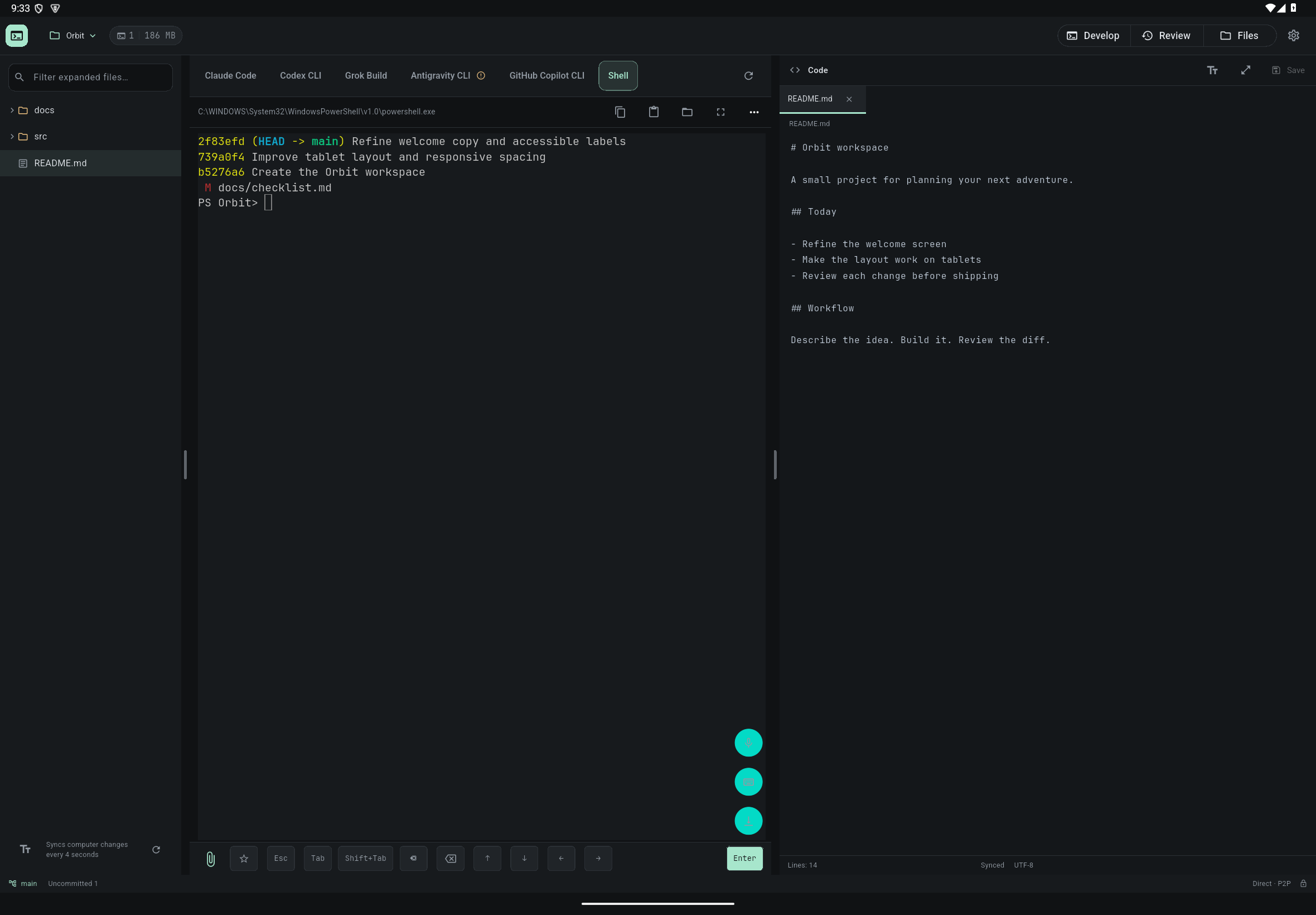
Check the result
Saving writes the real file on your computer, so AI tools and editors there see the change. The file list syncs computer changes every 4 seconds, and Refresh updates it at any time.
If something goes wrong
If AI or an editor on the computer changes the same file and you have no unsaved edits, the app simply loads the new content. If you do have unsaved edits, it shows “This file changed on the computer.” and refuses to save over the newer version. Reload discards your edits, so copy the text you want to keep first, then reload, compare, paste it back and save. The file list hides folders such as .git, node_modules and build, as well as symbolic links. Files outside the project need separate permission.